 Mari El · Windows 10 / 11
Mari keyboard layout for Windows 10 and 11
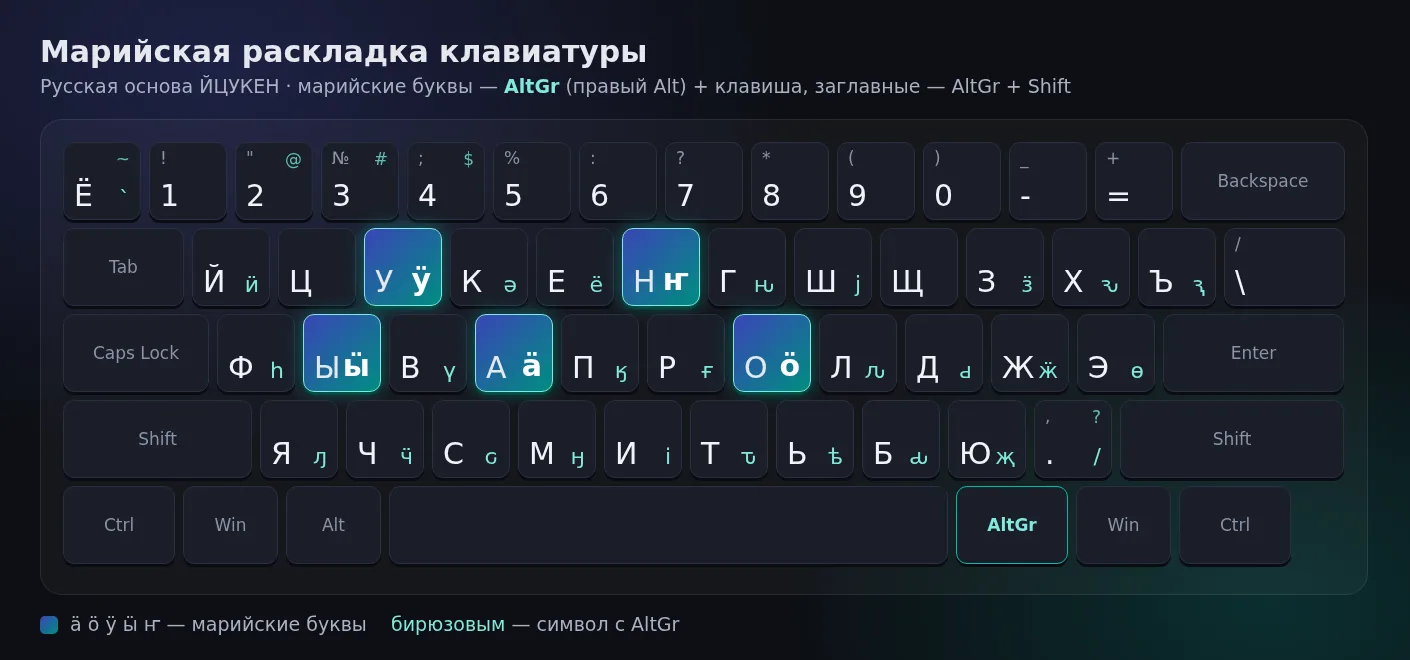
A free keyboard layout for the Mari language (марий йылме): type ӓ ӧ ӱ ӹ ҥ with AltGr on top of the familiar Russian ЙЦУКЕН layout. Version 3.1 is the successor to the “Марий клавиатур” 3.0 project.
⬇ Download for Windows — version 3.1
Mari layout map
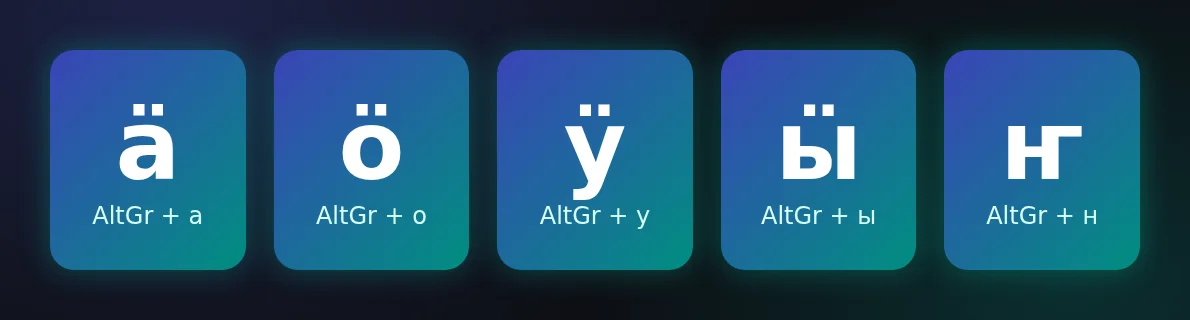
How to type the Mari letters ӓ, ӧ, ӱ, ӹ, ҥ
| Letter | Keys | Capital |
|---|---|---|
| ӓ | AltGr + а | AltGr + Shift + а → Ӓ |
| ӧ | AltGr + о | AltGr + Shift + о → Ӧ |
| ӱ | AltGr + у | AltGr + Shift + у → Ӱ |
| ӹ | AltGr + ы | AltGr + Shift + ы → Ӹ |
| ҥ | AltGr + н | AltGr + Shift + н → Ҥ |
AltGr is the right Alt key; Ctrl + Alt works too. The keys а, о, у, ы, н are the Cyrillic ones — F, J, E, S and Y on a US keyboard. Caps Lock applies to Mari letters as well. AltGr also gives you letters of other Finno-Ugric languages: ӥ ӟ ӝ ӵ ә ө ү ԁ ԃ ԅ ԇ ԉ ԋ ԍ ԏ ԓ and more.
How to install the Mari layout
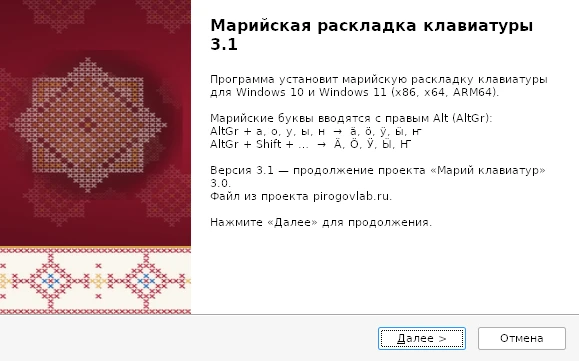
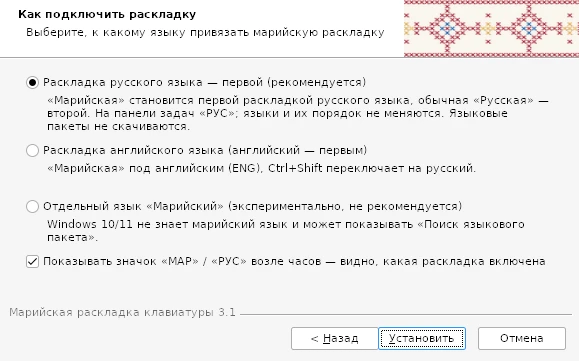
- Download MariKeyboard-Setup-3.1.exe and run it (administrator rights required). The installer’s interface is in Russian.
- Keep the default mode — first layout of the Russian language: “Марийская” (Mari) becomes the first keyboard layout for Russian and the standard “Русская” (Russian) layout comes second; your languages and their order stay the same. Other options: under the English language (ENG) and the experimental separate “Mari” language (mhr) for advanced users — Windows may start searching for a language pack, and the layout may not appear.
- Leave the “Show the МАР/РУС icon next to the clock” checkbox on: a “МАР” icon on a crimson background tells you the Mari layout is active, while “РУС” or “ENG” on grey means another one (Windows’ own “РУС” indicator looks the same for both Russian layouts). If the icon is hidden under the ^ arrow, drag it next to the clock.
- Click “Install” — “Марийская” appears first in the list of keyboards for Russian. No language packs are downloaded and no restart is needed.
- Switch languages just as before (e.g. Ctrl + Shift: English ↔ Russian). With Russian selected, the taskbar shows “РУС” and “Марийская” is active first; switch to the standard “Русская” with your layout shortcut (usually Alt + Shift) or via Win + Space. Type Mari letters with AltGr. If the layout doesn’t show up, sign out and sign back in.
Windows SmartScreen may show a warning because the file isn’t digitally signed: click “More info” → “Run anyway”. SHA-256: 7ca1185bcdf5956494aa5f3ffc20a357d308f97c929e4a257858901760f24e32
What’s new in version 3.1
- Support for Windows 10 and Windows 11, including ARM64 PCs.
- New default mode: “Марийская” (Mari) as the first layout of the Russian language (followed by the standard “Русская”), with your languages and hotkeys unchanged. Also available: an “under English” mode and an experimental separate “Mari” language (mhr).
- Caps Lock now works for Mari letters too.
- Clean uninstall via Settings → Apps.
- Letter positions are unchanged — no need to relearn anything.
FAQ
How do I type the Mari letters ӓ ӧ ӱ ӹ ҥ?
Hold the right Alt key (AltGr) and press а, о, у, ы or н. For capitals, add Shift. Ctrl + Alt works instead of AltGr too.
Does the layout work on Windows 10 and Windows 11?
Yes. The installer includes versions for 64-bit (x64), 32-bit (x86) and ARM64 PCs.
What will the taskbar show?
In the default mode, “Марийская” (Mari) is the first layout of the Russian language, so the taskbar shows “РУС”, while the layout list (Win + Space) shows “Марийская” followed by the standard “Русская” (Russian). In the “under English” mode it shows “ENG”. In the experimental “separate language” mode, Windows shows an abbreviation derived from the language code mhr, since Mari isn’t among Windows’ built-in languages. Windows 10/11 doesn’t display flags for layouts.
How can I tell that the Mari layout is the one that’s active?
The Windows taskbar shows only the language, so both “Марийская” and the standard “Русская” appear as “РУС” — Windows doesn’t let you change this for an individual layout. That’s why the installer adds a small indicator: the mode selection page has a “Show the МАР/РУС icon next to the clock” checkbox (on by default). The icon shows “МАР” on a crimson background when the Mari layout is active, and “РУС” or “ENG” on grey for the others. If the icon is hidden under the ^ arrow in the notification area, drag it next to the clock.
Which installation mode should I choose?
We recommend the default — first layout of the Russian language: “Марийская” becomes the first layout for Russian and the standard “Русская” the second. Your languages (English (US) and Russian), their order and hotkeys stay the same, and no language packs are downloaded. The second option is under the English language (ENG), with English first. The separate “Mari” language (mhr) is an experimental mode for advanced users: Windows may start searching for a language pack, and the layout may not appear.
Does the layout work for Hill Mari?
Yes, it includes every letter of the Meadow Mari and Hill Mari alphabets: ӓ, ӧ, ӱ, ӹ, ҥ, as well as ё.
How do I uninstall the Mari layout?
“Settings → Apps” (or “Programs and Features”) → “Марийская раскладка клавиатуры” (Mari keyboard layout) → “Uninstall”.
I already have the old “Марий клавиатур” 3.0. What should I do?
The new version installs alongside it and leaves the old one untouched. After installing, you can remove the old one via “Programs and Features”.